
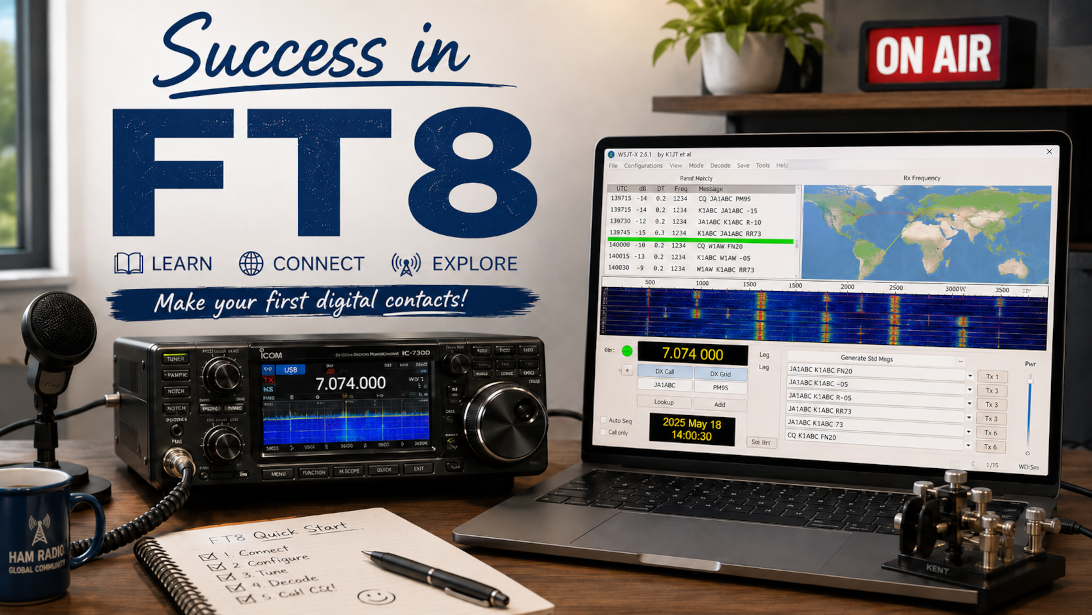
Getting Started with FT8 Digital Communications
Author: Eric Werny, WB6MTK
Publisher: WB6MTK.com
Website: www.wb6mtk.com
Topic: Amateur Radio, FT8, Digital Modes, WSJT-X, HF Digital Communications
Recommended audience: New amateur radio operators, HF operators, digital-mode beginners, FT8 users, radio club instructors, and operators setting up computer-to-radio communications
Last reviewed: May 2026
Summary
FT8 is one of the most popular digital modes in amateur radio because it allows operators to make reliable contacts under weak-signal conditions. Developed by Dr. Joe Taylor, K1JT, and Steve Franke, K9AN, FT8 stands for Franke-Taylor design, 8-frequency shift keying.
FT8 allows amateur radio operators to use a transceiver, computer, sound interface, and software to exchange short, structured messages such as call signs, signal reports, and grid squares. It is especially useful when signals are too weak for comfortable voice communication.
Getting started with FT8 requires several basic pieces:
- A computer
- An HF transceiver
- Radio-to-computer audio connection
- CAT control or push-to-talk method
- Accurate computer clock
- WSJT-X software
- Correct audio levels
- Proper operating frequency
- Clean transmitted signal
FT8 is not a conversation mode. It is a weak-signal contact mode. Once properly configured, it can help a modest station make contacts across the country or around the world.
Definition
FT8 is a weak-signal amateur radio digital mode that uses synchronized transmit and receive cycles to exchange short, structured contact information between stations.
FT8 is commonly used for:
- HF digital communication
- Weak-signal contacts
- DX hunting
- Grid chasing
- QRP operation
- Antenna testing
- Propagation reporting
- Portable operation
- Digital-mode training
A typical FT8 contact includes the exchange of call signs, grid square, signal reports, acknowledgments, and closing messages.
1. Why FT8 Is Popular
FT8 became popular because it gives operators a way to communicate when voice modes may not work well.
Many amateur radio operators face difficult station conditions, such as:
- Small antennas
- Limited space
- HOA restrictions
- High neighborhood noise
- Low power
- Poor propagation
- Indoor antennas
- Portable operation
- Compromised antenna installations
FT8 helps overcome some of these challenges because it can decode very weak signals. It is especially useful when an operator can see activity on the waterfall display even though the signals are not easily heard by ear.
FT8 does not replace SSB, CW, or other digital modes. It gives operators another useful tool.
2. What You Need to Get Started
A basic FT8 station does not need to be complicated.
You will need:
- Computer
- HF transceiver
- Antenna
- Radio-to-computer connection
- WSJT-X software
- Accurate clock synchronization
- Proper radio settings
- Correct audio levels
The quality of the setup matters. Many FT8 problems are caused by incorrect sound device selection, bad audio levels, clock error, or wrong radio control settings.
Computer
FT8 can run on Windows, macOS, or Linux.
A practical computer should have:
- Dual-core processor or better
- At least 4 GB RAM
- USB ports for radio connection
- Internet access for clock synchronization and optional logging services
- Stable audio device configuration
The computer does not need to be high-end, but it must be reliable.
HF Transceiver
Most modern HF transceivers can operate FT8.
Common examples include:
- Icom IC-7300
- Yaesu FT-991A
- Kenwood TS-590SG
- Other modern radios with USB audio
- Older radios using an external sound card interface
A radio with a built-in USB sound card is often easier to configure because one USB cable may provide both audio and radio control.
Older radios may require a separate audio interface.
Radio-to-Computer Interface
The computer must exchange audio with the radio.
There are two common ways to do this:
Built-In USB Audio
Many modern radios include built-in USB audio. This is usually the easiest method.
The USB connection may provide:
- Receive audio from radio to computer
- Transmit audio from computer to radio
- CAT control
- Push-to-talk control
External Digital Interface
Older radios may require an external interface such as a SignaLink USB or similar device.
An interface may provide:
- Audio isolation
- Transmit audio path
- Receive audio path
- Push-to-talk keying
- Level controls
The interface must be connected correctly and selected properly inside the FT8 software.
3. Install WSJT-X
FT8 is operated through software. The most common program is WSJT-X.
WSJT-X was developed by the same team responsible for several weak-signal digital modes used in amateur radio.
After installation, the most important step is configuration. FT8 will not work correctly until the software, radio, audio devices, and clock are set up properly.
4. Configure WSJT-X
Open WSJT-X and go to:
File → Settings
The main setup areas are:
- General
- Radio
- Audio
- Reporting
Each one matters.
General Tab
In the General tab, enter:
- Your call sign
- Your grid locator
Example:
- Call sign: WB6MTK
- Grid locator: DM37
Your grid locator is important because FT8 contacts commonly exchange grid information.
Make sure the call sign and grid are correct before transmitting.
Radio Tab
In the Radio tab, select your radio and control settings.
You may need to configure:
- Rig model
- CAT control port
- Baud rate
- Data bits
- Stop bits
- Handshake
- Push-to-talk method
- Mode setting
- Split operation setting
For many modern radios, CAT control is the preferred method.
Use:
Test CAT
to confirm that the computer can communicate with the radio.
Then use:
Test PTT
to confirm that the software can place the radio into transmit mode.
If either test fails, check the COM port, radio menu settings, USB driver, baud rate, or cable connection.
Audio Tab
The Audio tab is one of the most important settings.
Select the correct:
- Input device
- Output device
The input device is the audio coming from the radio into the computer.
The output device is the audio going from the computer into the radio.
Incorrect audio device selection is one of the most common FT8 setup problems.
Watch the receive level in WSJT-X. The receive level should be active but not overloaded. Avoid driving the level into the red.
For transmit audio, avoid overdriving the radio. A clean FT8 signal is more effective than a distorted signal.
Reporting Tab
The Reporting tab controls logging and signal reporting features.
Useful settings may include:
- Prompt me to log QSO
- Enable PSK Reporter spotting
- UDP server settings for companion programs
- Logging interface options
PSK Reporter spotting allows other operators to see where your signal is being received, and it allows you to study propagation and station performance.
5. Synchronize the Computer Clock
FT8 depends on accurate timing.
Each transmit and receive cycle is synchronized. If your computer clock is off by more than a small amount, you may fail to decode signals or complete contacts.
Clock synchronization is essential.
Good time-sync options include:
- Windows internet time sync
- NTP time synchronization software
- GPS-disciplined time source
- Reliable network time service
Before assuming the radio or software is broken, always confirm the computer clock is accurate.
6. FT8 Frequencies
FT8 uses commonly recognized operating frequencies on each amateur band. The radio is normally set to USB mode, even on bands where voice operators may traditionally use LSB.
Common FT8 dial frequencies include:
| Band | FT8 Frequency | Common Use |
|---|---|---|
| 80 meters | 3.573 MHz | Nighttime and regional contacts |
| 40 meters | 7.074 MHz | Very popular worldwide FT8 band |
| 30 meters | 10.136 MHz | Digital and CW/data activity; follow band rules |
| 20 meters | 14.074 MHz | Worldwide daytime and DX contacts |
| 17 meters | 18.100 MHz | Daytime DX opportunities |
| 15 meters | 21.074 MHz | Active when propagation supports it |
| 10 meters | 28.074 MHz | Excellent for DX when open |
| 6 meters | 50.313 MHz | Sporadic-E and weak-signal activity |
Always confirm current band privileges for your license class and location before transmitting.
7. Adjust Power and Audio Levels
FT8 does not require high power.
A reasonable starting point on HF is often:
20 to 30 watts
Many operators successfully use less.
The goal is not maximum power. The goal is a clean, decodable signal.
Watch for signs of overdrive:
- High ALC
- Distorted signal
- Excessive audio drive
- Wide transmitted signal
- Reports of splatter
- Poor decoding despite high power
A clean low-power signal is often better than a dirty high-power signal.
8. Making Your First FT8 Contact
Once the station is configured, making a contact follows a structured process.
Basic steps:
- Select the band and FT8 frequency
- Confirm USB or data mode is selected
- Watch the waterfall display
- Wait for signals to decode
- Double-click a CQ call in the Band Activity window
- Let WSJT-X send the proper reply sequence
- Watch the exchange complete
- Log the QSO when prompted
A typical FT8 exchange may look like this:
CQ WB6MTK DM37
WB6MTK K9ABC EN52
K9ABC WB6MTK -10
WB6MTK K9ABC R-07
K9ABC WB6MTK RR73
WB6MTK K9ABC 73
This exchange includes:
- CQ call
- Call signs
- Grid square
- Signal report
- Report acknowledgment
- Final 73
Most FT8 contacts are completed quickly when propagation and timing are good.
9. Finding a Clear Transmit Spot
Before calling CQ, look at the waterfall display.
Try to find a clear area between approximately:
300 Hz and 2100 Hz
Look for open dark spaces where no other signal appears to be transmitting.
Avoid transmitting directly on top of another station.
Good operating practice includes:
- Watching before transmitting
- Selecting a clear audio frequency
- Avoiding crowded spots
- Not calling over active QSOs
- Keeping the transmitted signal clean
With practice, the waterfall display becomes one of the most useful tools in FT8 operation.
10. Optional Companion Software
FT8 can be used with WSJT-X alone, but companion software can improve the experience.
GridTracker
GridTracker provides visual mapping of contacts, grids, and propagation paths.
It is useful for:
- Grid chasing
- Award tracking
- Visual contact display
- Band activity awareness
- Propagation review
JTAlert
JTAlert provides alerts and integration features.
It can help with:
- Audible alerts
- Needed states or countries
- DX notifications
- Logging support
- Worked-before alerts
- Callsign lookup
Logging Programs
WSJT-X can integrate with several logging programs and online logbooks.
Common options include:
- Log4OM
- N1MM Logger+
- QRZ Logbook
- Club Log
- LoTW-compatible workflows
- Other amateur radio logging systems
Good logging habits matter. FT8 contacts are only useful later if they are logged accurately.
11. Suggested FT8 Operating Practices
FT8 is simple to use once configured, but good operating habits still matter.
Recommended practices include:
- Use USB or data mode as appropriate
- Keep the computer clock synchronized
- Avoid excessive transmit audio
- Keep ALC low or inactive, depending on radio guidance
- Use moderate power
- Watch before transmitting
- Choose a clear waterfall spot
- Confirm call sign and grid square
- Log contacts accurately
- Do not treat FT8 as a ragchew mode
- Follow band plans and license privileges
- Keep transmissions clean and narrow
- Learn what each message in the exchange means
- Monitor your signal reports
- Use PSK Reporter to evaluate station performance
FT8 may be semi-automated, but the operator remains responsible for station operation.
12. Troubleshooting FT8 Problems
Most FT8 problems are caused by setup errors. Troubleshooting should begin with the basics.
| Problem | Likely Cause | Practical Solution |
|---|---|---|
| No decode | Computer clock is off, wrong audio input, receive level too low, wrong frequency | Synchronize time, verify audio input, confirm frequency and mode |
| No transmit | Wrong COM port, failed CAT/PTT setup, radio menu setting incorrect | Check Radio tab, test CAT, test PTT, verify radio USB settings |
| Radio transmits but no power output | Wrong audio output device, audio level too low, radio not in correct data mode | Select correct output device, increase audio carefully, confirm radio mode |
| High ALC | Transmit audio too high | Lower computer output and software audio level |
| Distorted signal | Overdriven audio or processing enabled | Reduce audio drive, disable compression or processing |
| VOX triggers unexpectedly | VOX enabled or audio level too high | Disable VOX unless intentionally used, lower levels |
| Decodes but cannot complete QSOs | Timing issue, low signal, wrong sequence, interference | Recheck clock, choose clearer waterfall spot, verify sequence |
| Signal reports are poor | Antenna, power, propagation, or audio issue | Test antenna, compare PSK Reporter reports, verify clean output |
A good rule is to solve one problem at a time.
Do not change every setting at once.
13. Common Beginner Mistakes
New FT8 operators often run into the same issues.
Mistake 1: Ignoring Clock Accuracy
FT8 depends on timing. Always verify clock synchronization.
Mistake 2: Using Too Much Audio Drive
More audio is not better. Excessive drive creates distortion.
Mistake 3: Selecting the Wrong Sound Device
Many computers have multiple sound devices. Choose the radio or interface device, not the computer microphone or speaker.
Mistake 4: Forgetting USB Mode
FT8 normally uses USB or data mode on all bands.
Mistake 5: Transmitting Over Other Stations
Always check the waterfall before transmitting.
Mistake 6: Not Understanding the Exchange
Even though WSJT-X automates much of the process, the operator should know what the messages mean.
14. Practical Example: First FT8 Setup With an Icom IC-7300
A common beginner setup might include:
- Icom IC-7300
- USB cable to computer
- WSJT-X software
- 40-meter dipole
- Computer time synchronization
- 20 watts transmit power
The operator would:
- Install the proper USB driver if needed
- Connect the radio to the computer by USB
- Select the IC-7300 in WSJT-X
- Configure the correct COM port
- Select USB audio input and output
- Enter call sign and grid square
- Tune to 7.074 MHz
- Confirm decode activity
- Set clean transmit audio level
- Make and log the first contact
This kind of setup can get a new operator on FT8 without a complex station.
15. Practical Example: Using FT8 to Check Antenna Performance
FT8 is very useful for seeing where your signal is going.
To test an antenna:
- Select one band
- Set a fixed transmit power
- Transmit several FT8 sequences
- Check PSK Reporter
- Note where your signal was received
- Change antenna or band
- Repeat the test
- Compare results
This can help evaluate:
- Antenna directionality
- Band conditions
- Regional coverage
- DX openings
- Noise problems
- Station performance
FT8 is not only a communication mode. It is also a practical station-analysis tool.
Conclusion
FT8 opens an important world of weak-signal digital communication for amateur radio operators.
With a transceiver, computer, correct audio setup, accurate clock, and WSJT-X software, an operator can begin making digital contacts under conditions where voice communication may be difficult.
FT8 is efficient, popular, and powerful, but it must be operated correctly. Clean audio, accurate timing, proper frequency selection, and good operating etiquette are essential.
For the new operator, FT8 can be an exciting first step into digital communications. For the experienced operator, it can be a valuable tool for DX, QRP, propagation testing, antenna evaluation, and weak-signal operation.
FT8 does not replace the rest of amateur radio. It adds another capability.
Used properly, it helps keep the bands active, measurable, and accessible to stations of all sizes.
Frequently Asked Questions
What is FT8?
FT8 is a weak-signal amateur radio digital mode that uses synchronized transmit and receive cycles to exchange call signs, signal reports, grid squares, and acknowledgments.
What software do I need for FT8?
The most common software is WSJT-X. Other programs may support FT8, but WSJT-X is the standard starting point for most operators.
Do I need a microphone for FT8?
No. FT8 uses computer-generated audio tones sent through the radio. A microphone is not used for normal FT8 operation.
Do I need internet access to use FT8?
Internet access is helpful for clock synchronization, software downloads, logging, and PSK Reporter spotting. However, the radio contact itself takes place over the air, not through the internet.
Why is my computer clock important for FT8?
FT8 transmissions occur in synchronized time slots. If your computer clock is inaccurate, you may not decode signals or complete contacts properly.
What power should I use for FT8?
A common starting point is 20 to 30 watts on HF. Many operators use less. The most important thing is to transmit a clean signal without overdriving the radio.
Why am I not decoding FT8 signals?
Common causes include an inaccurate computer clock, wrong audio input, low receive audio level, wrong frequency, wrong mode, or incorrect radio settings.
Why does my radio transmit but produce no FT8 signal?
The most likely causes are wrong audio output device, incorrect radio data mode, low computer audio output, incorrect interface settings, or failed sound device routing.
Should I use USB on 40 meters for FT8?
Yes. FT8 commonly uses USB or data mode on all bands, including bands where voice operators may normally use LSB.
Is FT8 good for beginners?
Yes. FT8 can be beginner-friendly after setup, but new operators should still learn proper radio settings, audio levels, timing, band privileges, and operating etiquette.
References and Further Reading
The following resources are useful for FT8 setup, digital modes, and weak-signal amateur radio operation:
- WSJT-X User Guide and official documentation
- Joe Taylor, K1JT, and Steve Franke, K9AN, FT8 development resources
- American Radio Relay League, Digital Modes resources
- American Radio Relay League, The ARRL Handbook for Radio Communications
- Federal Communications Commission, 47 CFR Part 97 — Amateur Radio Service
- PSK Reporter propagation reporting network
- GridTracker documentation and user resources
- JTAlert documentation and user resources
- Log4OM and N1MM Logger+ documentation
- Manufacturer manuals for radios such as the Icom IC-7300, Yaesu FT-991A, and Kenwood TS-590SG
Suggested Page Title for WB6MTK.com
Getting Started with FT8 Digital Communications
Suggested SEO Description
Learn how to get started with FT8 digital communications using WSJT-X, an HF transceiver, computer audio, time synchronization, proper FT8 frequencies, clean transmit settings, and beginner-friendly operating practices.
